CISL 2011: ahí estuvimos

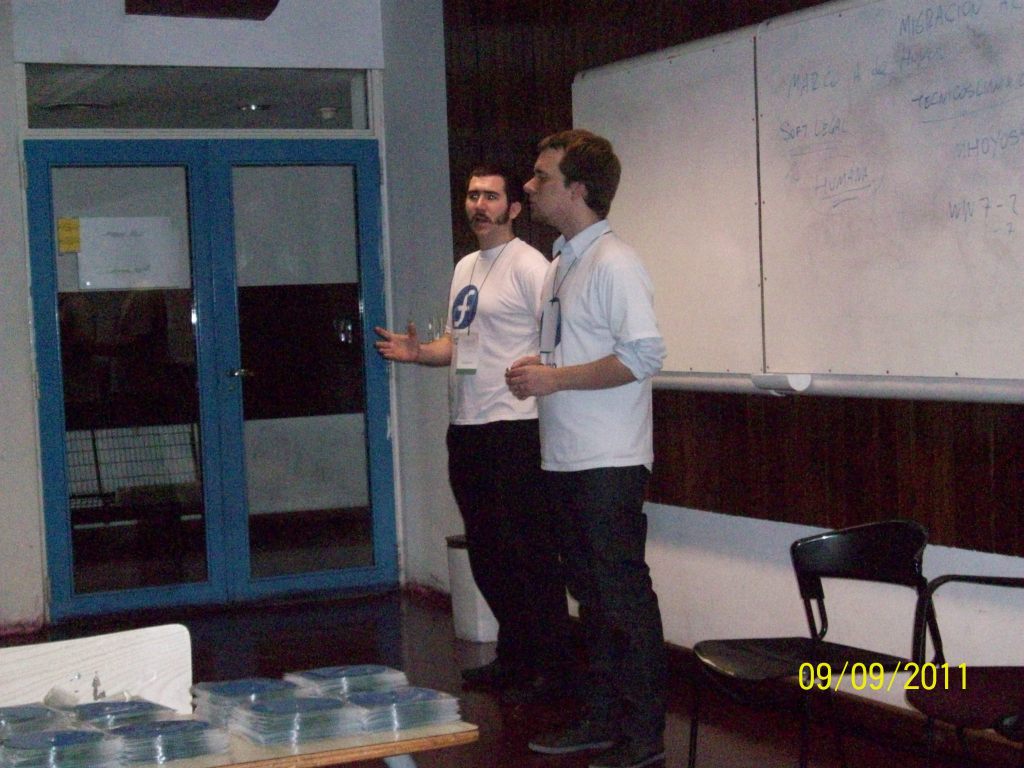
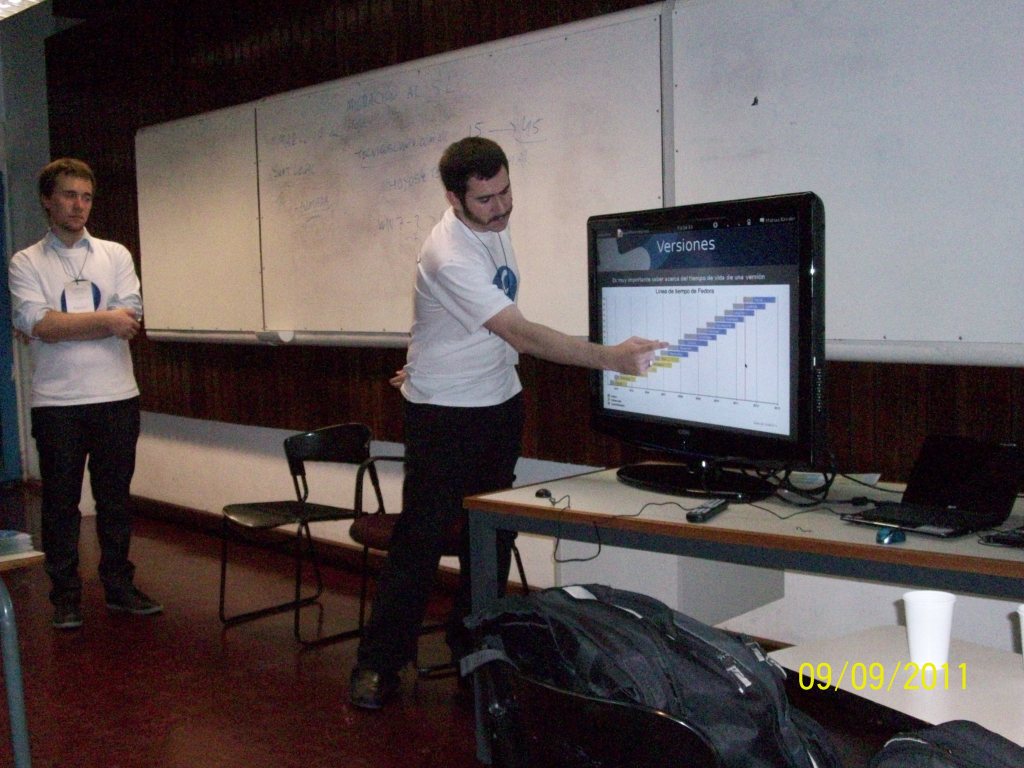
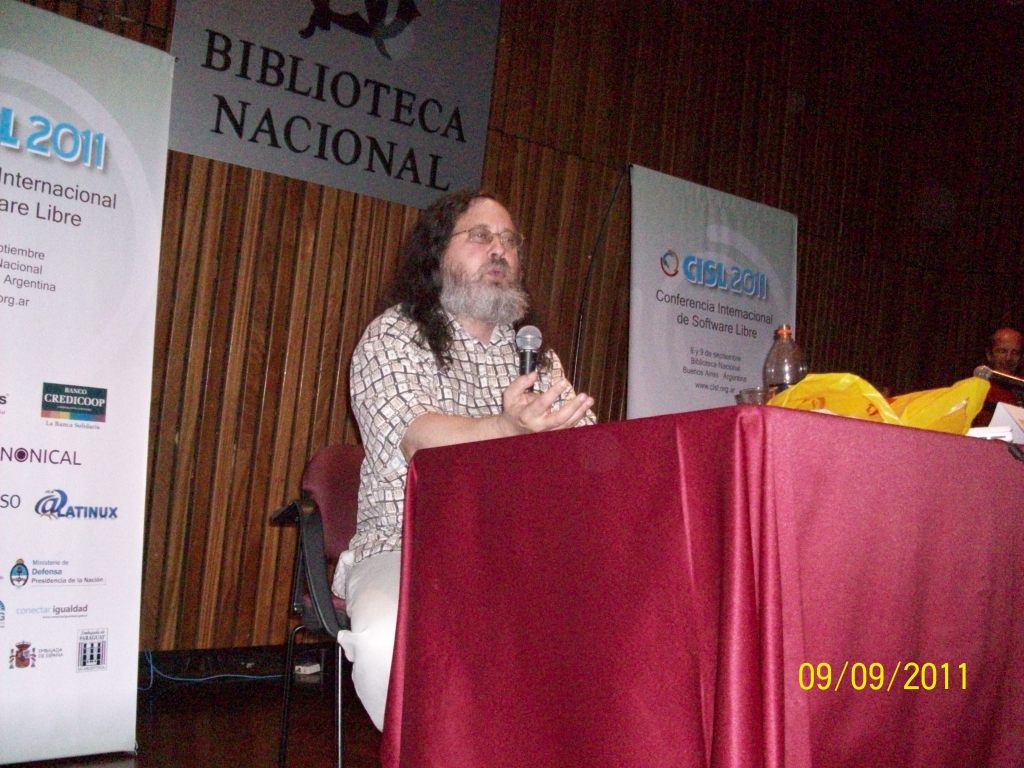
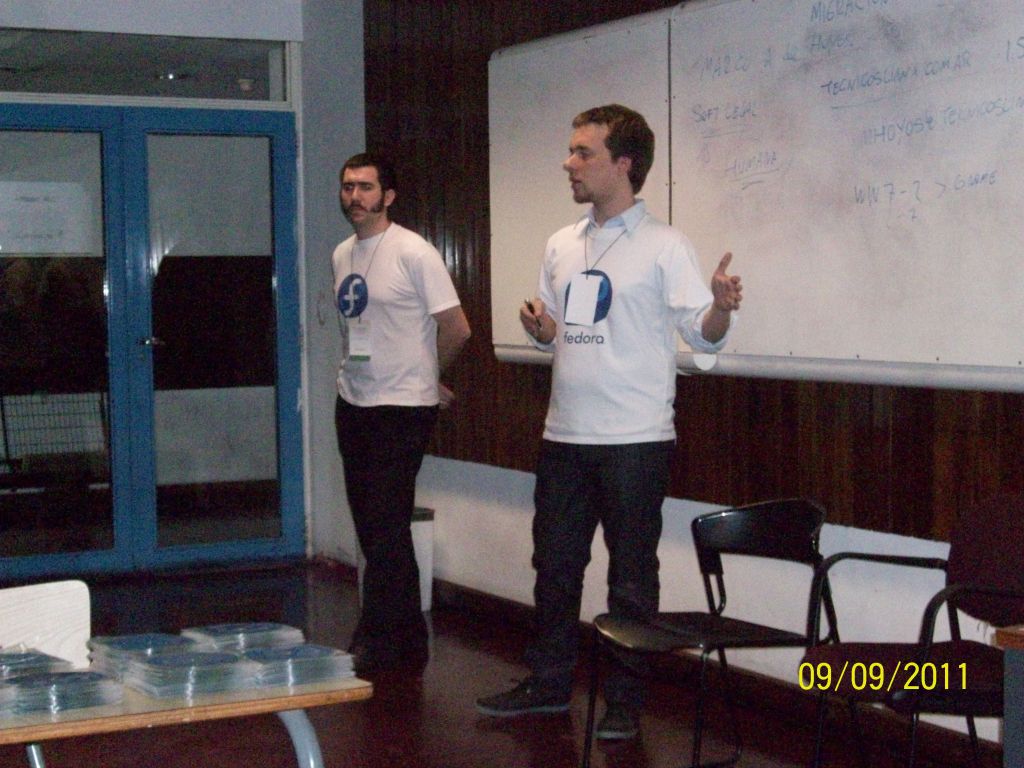
Yesterday, September 9th, we were present in the CISL (Free Software International Conference). Our presentation was shorter than we had planned because the previous speaker didn’t finish on time but fortunately we had enough time to cover all the important points.

It was Rino’s first event as a Fedora speaker and he did a great job! He also enjoyed it a lot!! Welcome Rino!!

After our presentation we met Hernán Vivani, one of our Fedora’s  SA, and Claudio Pereyra Díaz, one of our translators . Hernán told us about the presentation he had given the day before. It was about how he switched a small national company from  proprietary to free software

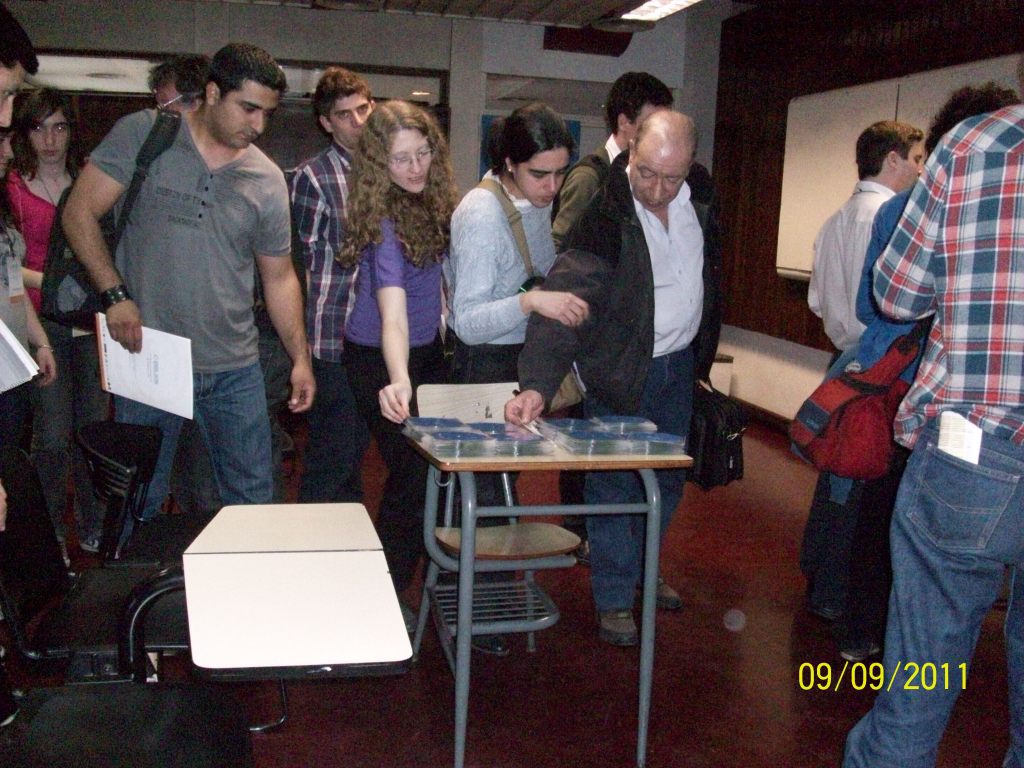
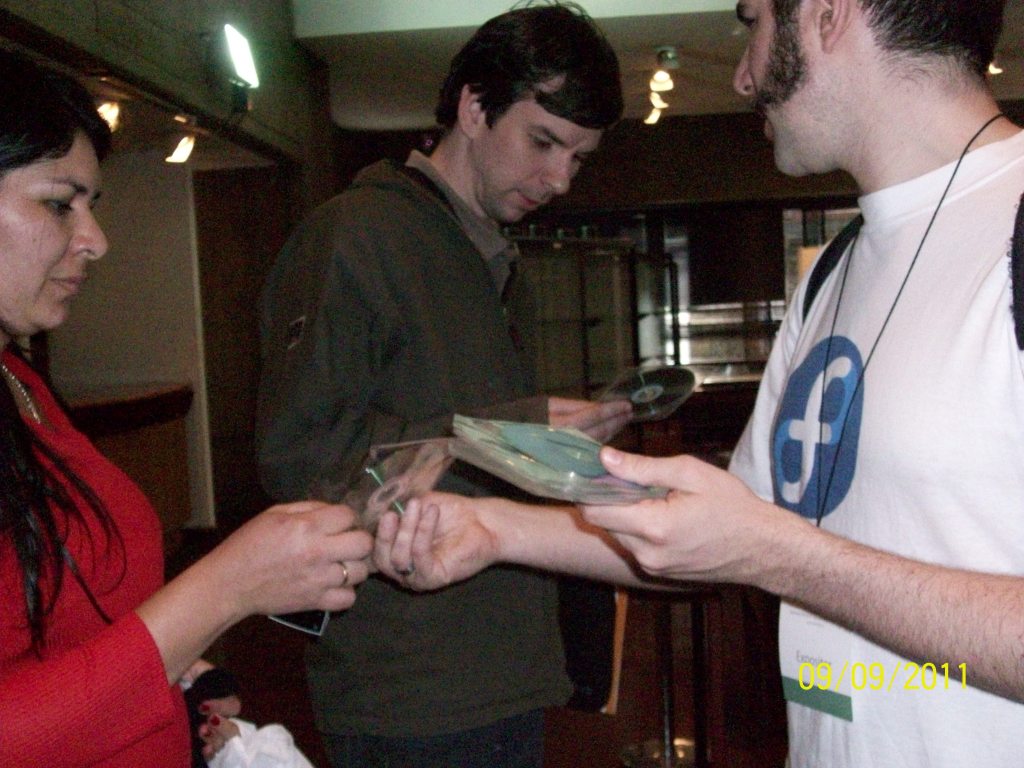
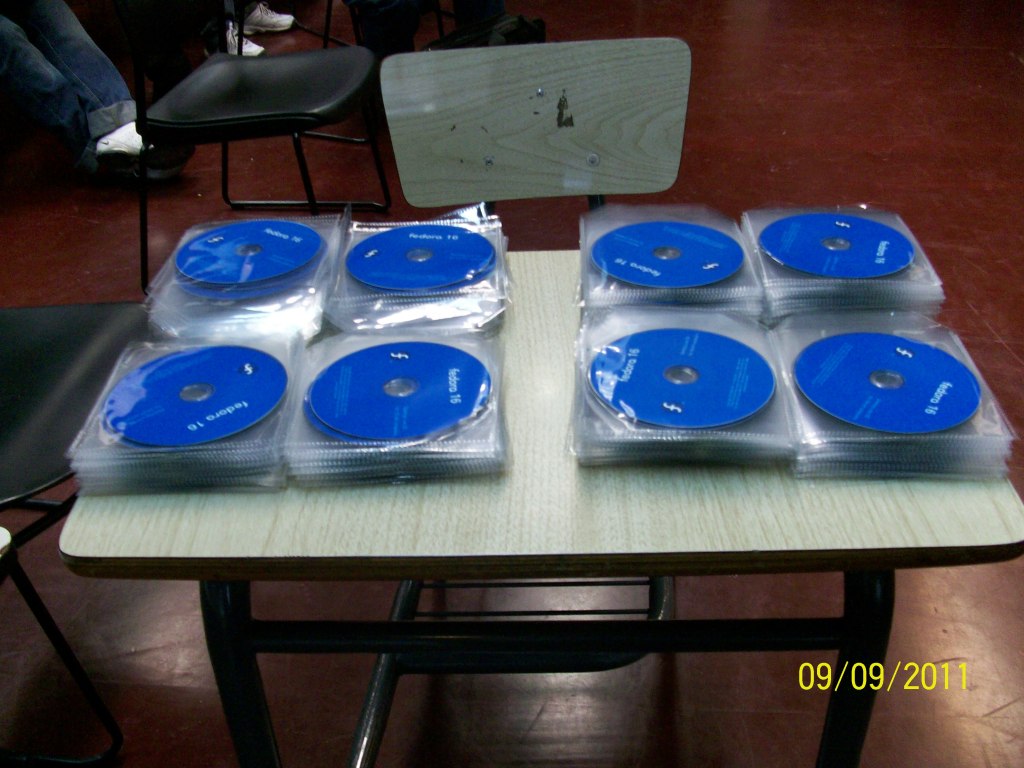
We also had some time before Richard Stallman’s presentation to give LiveCDs and answer questions to the participants.

You can download the presentation here.

Spanish

Ayer, 9 de Septiembre participamos en la CISL, Conferencia Internacional del Software Libre. La charla tuvo que ser rápida porque nos entregaron el aula tarde pero se mencionaron las cosas mas importantes de la presentación.

Fue el primer evento de Rino, como orador para Fedora y lo hizo excelente! También él lo disfruto mucho. Bienvenido Rino!!

Después de la presentación nos visitaron Hernán Vivani, SA de Fedora, y Claudio Pereyra Diaz, traductor de Fedora. Hernán nos contó sobre la charla que dio en CISL el Jueves 08 sobre su caso de éxito al migrar Postres Balcarce, de Software privativo a Software libre.

Pudimos aprovechar antes de la charla de Richard Stallman, para obsequiar LiveCDs y contestar preguntas al público.

Como lo prometido es deuda, se puede descargar la presentación aquí.

CISL 2011 ahí estaré!

Conferencia Internacional de Software Libre means Free Software International Conference.

On September 9th I will be giving a talk about Fedora 15 in our National Library. I will also talk a bit about the spins and what is coming in Fedora 16.

Another thing I will be talking about is the community and the different roles that our project has and how everyone can join us!

If you have any hint please feel free to leave a comment and/or wish me luck!

To register go here: CISL.

Spanish

El 9 de Septiembre a las 14:00 voy a dar una charla acerca de Fedora 15 en la Biblioteca Nacional. También voy a hablar sobre los Spins y que vendrá con Fedora 16.

Asimismo hablare sobre la comunidad, los diferentes roles que cualquiera puede tomar y como involucrarse!

Pueden registrase en la pagina oficial del CISL.

phew.. thanks resize2fs for being cool

Yesterday while shrinking a filesystem my computer got stock due a hardware failure:


[root@mirror /]# resize2fs -p /dev/mapper/vg_mirror-LogVol03 410G
resize2fs 1.41.14 (22-Dec-2010)
Resizing the filesystem on /dev/mapper/vg_mirror-LogVol03 to 107479040 (4k) blocks.
Begin pass 2 (max = 15391251)
Relocating blocks XXXXXXXXXXXXXXXXXXXXXX------------------

Booted from a DVD in the rescue environment, mounted the filesystem and everything was OK. The size was still the original. I performed an e2fsck and then tried again. Apparently, the “Relocating blocks” part doesn’t cause any corruption if interrupted 😀

Spanish

Ayer mientras achicaba un filesystem mi computadora se freezo por un problema de hardware:


[root@mirror /]# resize2fs -p /dev/mapper/vg_mirror-LogVol03 410G
resize2fs 1.41.14 (22-Dec-2010)
Resizing the filesystem on /dev/mapper/vg_mirror-LogVol03 to 107479040 (4k) blocks.
Begin pass 2 (max = 15391251)
Relocating blocks XXXXXXXXXXXXXXXXXXXXXX------------------

Bootie desde un DVD, en modo rescate, monte el filesystem y todo estaba bien. El tamaño del filesystem todavía era el original. Realice un e2fsck y después probé de nuevo con el resize2fs. Aparentemente la parte de “Relocating blocks” no hace ningún daño si se interrumpe 😀

My smart backup script

I was used to have a rsync call in my crontab to perform backup from my laptop to my desktop. My idea was to backup my laptop everyday even if I wasn’t at home, so before the time that the rsync ran I had to make sure that I was connected to my home network via OpenVPN and that my desktop was on.

If the day was calm, no problem, but when I was busy at work that meant no backup for that day.

I decided to code my own script to solve this problem.


#!/bin/bash
export DISPLAY=:0

#Vars for remote computer

DSTUSR=user
DSTROOT=root
DSTIP=192.168.1.2
DSTFOLDER=/path/to/destionation/backup/folder/

#Vars for my OpenWrt router
LINKSYS=192.168.1.1
LINKSSHPORT=22
LINKUSER=root

PCTRL=0
PCTRL2=0

#this part checks if I’m on my LAN, if not it tries to connect to
# my OpenVPN server running in my Linksys with OpenWrt

echo “Checking if my router is on this network”
ssh $LINKSYS -p $LINKSSHPORT -l $LINKUSER ls &> /dev/null
PSTATE1=$?;
while [ ! $PSTATE1 -eq 0 ]; do
echo “it isn’t”
if [ ! -f /var/lock/subsys/openvpn ]; then
echo “openvpn is down, let’s try to connect”
$HOME/vpn $(Xdialog –stdout –title “OpenVPN password” –no-close \
–screen-center –password –inputbox “Password” 10 100);
fi
sleep 20;
ssh $LINKSYS -p $LINKSSHPORT -l $LINKUSER ls &> /dev/null;
PSTATE1=$?;
PCTRL=`expr $PCTRL + 1`
if [ $PCTRL -eq 5 ]; then
notify-send “connection failed”
exit 1
fi
done

#this part checks if my home computer is up, if not, it will
#try to turn it on by WOL from my OpenWrt router.

echo “hmmm, is my Computer up?”
ssh $DSTROOT@$DSTIP ls
PSTATE2=$?;
while [ ! $PSTATE2 -eq 0 ]; do
echo “it’s not..”
ssh -l $LINKUSER -p $LINKSSHPORT $LINKSYS /root/wakeup &> /dev/null
sleep 30;
ssh $DSTROOT@$DSTIP ls
PSTATE2=$?;
PCTRL2=`expr $PCTRL2 + 1`
if [ $PCTRL2 -eq 5 ]; then
notify-send “cannot power on remote computer”;
exit 2 ;
fi
done
echo “it’s now”

# backup part

echo “starting backup…”
notify-send “starting backup…”

date
rsync -vaHx –progress –numeric-ids $HOME/ $DSTUSR@$DSTIP:$DSTFOLDER
notify-send “backup done”
#here it asks me if I want to turn off my home computer


Xdialog --title --stdout "remote computer is on..." --screen-center --yesno \
"Turn off computer?" 10 50
if [ $? -eq 0 ]; then
#the following line will set something in my Ethernet card that allows me to
#wake up my computer with WOL
ssh $DSTROOT@$DSTIP /sbin/ethtool -s eth0 wol g &> /dev/null
ssh $DSTROOT@$DSTIP poweroff &> /dev/null
fi

for the dialogs, I had to install ‘xdialog’

Also, I’m calling another script called ‘vpn’ that I made with expect, it’s used to connect to my OpenVPN server with the passphrase I specify with a parameter.


#!/usr/bin/expect

if $argcsend_user “usage: \n”
send_user “$argv0 password \n”
send_user “”
exit
}

spawn sudo /usr/sbin/openvpn –config /etc/openvpn/openvpn.conf –daemon
expect “Enter Private Key Password:”
send “[lindex $argv 0]\r”
interact

In my router I made an script called ‘wakeup’ that only runs:

Hope you can use it for something, if not, you have a good example of how to use Xdialog, expect and some other things.

Español

Todo comenzó cuando tenia configurado un script de rsync en el cron, el cual me permitía hacer backup desde mi laptop a mi desktop. Mi idea era hacer backup diariamente, incluso aquellos dias en los que no estaba en casa. Con este propósito, antes de que mi script se ejecutase tenia que preparar el entorno, iniciar la VPN y asegurarme que mi PC de casa estuviese prendida.

Si el día estaba tranquilo, no había problema, pero si era un día complicado me quedaba sin backup.

Decidí hacer un script para solucionar este problema


#!/bin/bash
export DISPLAY=:0

#Variables sobre mi computadora remota

DSTUSR=usuario
DSTROOT=root
DSTIP=192.168.1.2
DSTFOLDER=/path/a/la/carpeta/donde/backupear/

#Variables de mi router
LINKSYS=192.168.1.1
LINKSSHPORT=22
LINKUSER=root

PCTRL=0
PCTRL2=0

#Esta parte verifica si mi PC esta en mi red hogareña, si no esta
#intenta conectar utilizando OpenVPN

echo “Chequeando si mi router esta en esta red”
ssh $LINKSYS -p $LINKSSHPORT -l $LINKUSER ls &> /dev/null
PSTATE1=$?;
while [ ! $PSTATE1 -eq 0 ]; do
echo “no esta”
if [ ! -f /var/lock/subsys/openvpn ]; then
echo “openvpn esta abajo, tratamos de conectar”
$HOME/vpn $(Xdialog –stdout –title “OpenVPN password” –no-close \
–screen-center –password –inputbox “Password” 10 100);
fi
sleep 20;
ssh $LINKSYS -p $LINKSSHPORT -l $LINKUSER ls &> /dev/null;
PSTATE1=$?;
PCTRL=`expr $PCTRL + 1`
if [ $PCTRL -eq 5 ]; then
notify-send “conexion fallida”
exit 1
fi
done

#esta parta chequea si mi PC esta prendida, si no esta
#va a tratar de prenderla por WOL a través de mi router con OpenWrt

echo “hmmm, esta prendida mi PC?”
ssh $DSTROOT@$DSTIP ls
PSTATE2=$?;
while [ ! $PSTATE2 -eq 0 ]; do
echo “no esta….”
ssh -l $LINKUSER -p $LINKSSHPORT $LINKSYS /root/wakeup &> /dev/null
sleep 30;
ssh $DSTROOT@$DSTIP ls
PSTATE2=$?;
PCTRL2=`expr $PCTRL2 + 1`
if [ $PCTRL2 -eq 5 ]; then
notify-send “no se puede prender la PC”;
exit 2 ;
fi
done
echo “Lo esta ahora”

# parte del backup

echo “Iniciando backup..”
notify-send “Iniciando backup..”

date
rsync -vaHx –progress –numeric-ids $HOME/ $DSTUSR@$DSTIP:$DSTFOLDER
notify-send “backup listo”
#luego pregunta si quiero apagar mi PC


Xdialog --title --stdout "la computadora esta prendida.." --screen-center \
--yesno "Apagar computadora remota?" 10 50
if [ $? -eq 0 ]; then
#la siguiente linea configura algo en mi placa de red para que pueda
#prenderla por WOL
ssh $DSTROOT@$DSTIP /sbin/ethtool -s eth0 wol g &> /dev/null
ssh $DSTROOT@$DSTIP poweroff &> /dev/null
fi

Para los diálogos tuve que instalar el programa ‘xdialog’

También estoy utilizando otro script llamado ‘vpn’ que hice con expect. La función de este script es conectarme a mi servidor OpenVPN con la password que le paso como parámetro.


#!/usr/bin/expect

if $argc<1 {
send_user “Modo de uso\n”
send_user “$argv0 password \n”
send_user “”
exit
}


spawn sudo /usr/sbin/openvpn --config /etc/openvpn/openvpn.conf --daemon
expect "Enter Private Key Password:"
send "[lindex $argv 0]\r"
interact

En mi router, hice un script que se llama ‘wakeup’ que solo contiene la siguiente linea:

etherwake AA:BB:CC:DD:EE:FF

Donde AA:BB:CC:DD:EE:FF es la MAC address de mi PC de escritorio.

“No soy una persona técnica! que esta haciendo esto?”
Básicamente, esta viendo si mi laptop esta en mi red hogareña. De no estarlo trata de establecer una conexión con mi red hogareña a través de una VPN. Una vez en la red, se fija si mi computadora esta prendida. Si no esta prendida, trata de prenderla por WOL. Cuando todo esta OK, hace un backup diferencial entre mi laptop y mi computadora de casa.

Espero que puedan usar el script para algo, sino, es un buen ejemplo de como usar Xdialog, expect y otras cosillas…
How to allow a user to run a single command as root via sudo

In order to allow a user to run a single command as root using sudo run the following as root:

echo "user ALL= NOPASSWD : /bin/file" >> /etc/sudoers

Where user is the specified username and /bin/file if the path to the binary that we are allowing this user to run.

If you want to do further changes to the sudoers file it’s recommended to use the command ‘visudo’ to do so.

Español

Para poder hacer esta tarea solo tenemos que ejecutar el siguiente comando como root:

echo "user ALL= NOPASSWD : /bin/file" >> /etc/sudoers

Donde user es el usuario al que le queremos dar permisos y /bin/file es la dirección o path es el archivo binario que le vamos a permitir ejecutar.

Para hacer más cambios al archivo sudoers es recomendable utilizar el comando ‘visudo’.

How to set up kozumi ktv-01c in Fedora

In order to setup this card, you have to add these parameters to /etc/modprobe.d/bttv.conf

cat << EOF > /etc/modprobe.d/bttv.conf
alias char-major-81 videodev
alias char-major-81-0 bttv
options bttv pll=1 card=120 radio=1 tuner=38 remote=1 bttv_verbose=1 gbuffers=4
EOF

Then, reinitialize the appropriate module:

# rmmod bttv; modprobe bttv

Install tvtime that is my recommended program to watch the TV.

# yum install tvtime

Configure tvtime with your norm (in my case PAL-Nc) and scan for channels.

$ tvtime-configure -n PAL-Nc
$ tvtime-scanner

Run tvtime from your GNOME/KDE menu or running ‘tvtime’ .
For others linux distributions, like ubuntu the procedure may be similar.

Español

Para configurar esta capturadora, primero tenemos que configurar los parámetros en /etc/modprobe.d/bttv.conf

cat << EOF > /etc/modprobe.d/bttv.conf
alias char-major-81 videodev
alias char-major-81-0 bttv
options bttv pll=1 card=120 radio=1 tuner=38 remote=1 bttv_verbose=1 gbuffers=4
EOF

Luego, recargamos el modulo:

# rmmod bttv; modprobe bttv

Instalamos TVtime, que es mi programa preferido para ver TV en la PC.

# yum install tvtime

Configuramos tvtime con la norma correspondiente para nuestro país. Argentina es PAL-Nc

$ tvtime-configure -n PAL-Nc
$ tvtime-scanner

Listo! ahora podemos correr tvtime desde una consola o desde el menú de GNOME/KDE.
Para otras distribuciones de Linux, como Ubuntu, el procedimiento debería ser similar.

Mic. input broken on an Acer 1410

Thanks to Mathieu Bouffard, he helped me to to workaround the issue with my mic in Acer Aspire One 1410.

Issue:

Somehow the ALSA driver is trying to pass to PulseAudio an stereo output that PulseAudio doesn’t understand.

Solution:

Use jackd as a “proxy” between ALSA and PulseAudio, jackd will capture the input in mono from the ALSA driver, and pass it to PulseAudio.

Download his module for PulseAudio:

# yum install pulseaudio-module-jack

Configure PulseAudio to no auto respawn when killed.

echo "autospawn = no" > ~/.pulse/client.conf

Create a file in our home directory ~/jackd.pa

#!/usr/bin/pulseaudio -nF

###
# these modules will connect to JACK
load-module module-jack-sink
load-module module-jack-source

###
#add-autoload-sink output module-jack-sink channels=2
#add-autoload-source input module-jack-source channels=2
#load-module module-esound-protocol-unix
load-module module-native-protocol-unix
load-module module-volume-restore
#load-module module-stream-restore
load-module module-rescue-streams
.nofail


###
load-module module-x11-publish
load-module module-gconf

###
# Load LIRC for Pulse
# load-module module-lirc sink=jack_out config=/home/mbouffard/.lircrc

Create the config file for ALSA: ~/.asoundrc

# .asoundrc

pcm.!default {
type pulse
hint.description "Default Audio Device"
}
ctl.!default {
type pulse
}

and last but not least, create a mini-script to launch PulseAudio using this configuration. I called it ~/pulsejack:

killall jackd ; pulseaudio --kill
/usr/bin/jackd -S -v -r -dalsa -dhw:0 -r48000 -p1024 -n2 &
pulseaudio -n -F jackd.pa
while [ $? -eq 137 ]; do
sleep 5; #sometimes after get started pulseaudio got killed somehow
pulseaudio -n -F jackd.pa
done

We run our script:

chmod +x ~/pulsejack
~/pulsejack

A patch was submitted to the alsa devel team to fix this problem at ALSA level.

Español

Gracias a Mathieu Bouffard, él me ayudo a a configurar mi micrófono en mi Acer Aspire One 1410.

Problema:

De algún modo el driver de ALSA esta tratando de pasarle a PulseAudio una salida stereo que PulseAudio no entiende.

Solución:

Usando jackd como un “proxy” entre ALSA y PulseAudio. Jackd va a capturar la entrada mono desde el driver de ALSA y se lo va a pasar a PulseAudio

Descargamos el siguiente modulo de PulseAudio:

# yum install pulseaudio-module-jack

Configuramos PulseAUdio para no auto-reiniciarse cuando lo matamos.

echo "autospawn = no" > ~/.pulse/client.conf

Creamos el siguiente archivo en nuestro home: ~/jackd.pa

#!/usr/bin/pulseaudio -nF

###
# these modules will connect to JACK
load-module module-jack-sink
load-module module-jack-source

###
#add-autoload-sink output module-jack-sink channels=2
#add-autoload-source input module-jack-source channels=2
#load-module module-esound-protocol-unix
load-module module-native-protocol-unix
load-module module-volume-restore
#load-module module-stream-restore
load-module module-rescue-streams
.nofail


###
load-module module-x11-publish
load-module module-gconf

###
# Load LIRC for Pulse
# load-module module-lirc sink=jack_out config=/home/mbouffard/.lircrc

Creamos el archivo de configuración para ALSA: ~/.asoundrc

# .asoundrc

pcm.!default {
type pulse
hint.description "Default Audio Device"
}
ctl.!default {
type pulse
}

Y por ultimo, creamos un mini-script para lanzar PulseAudio usando esta configuración. Yo lo llame ~/pulsejack:

killall jackd ; pulseaudio --kill
/usr/bin/jackd -S -v -r -dalsa -dhw:0 -r48000 -p1024 -n2 &
pulseaudio -n -F jackd.pa
while [ $? -eq 137 ]; do
sleep 5; # a veces despues de iniciar alguien o algo mata a pulseaudio
pulseaudio -n -F jackd.pa
done

Ejecutamos nuestro script:

chmod +x ~/pulsejack
~/pulsejack

Un patch fue enviado al team de ALSA para solucionar este problema desde el driver.

Red Hat Linux 6.2

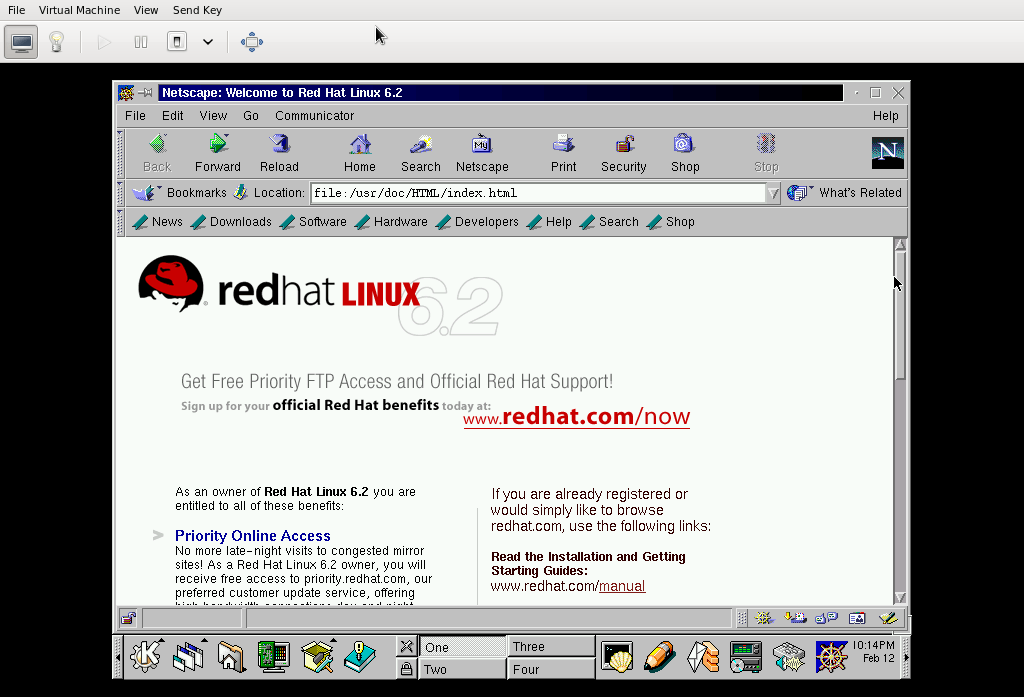
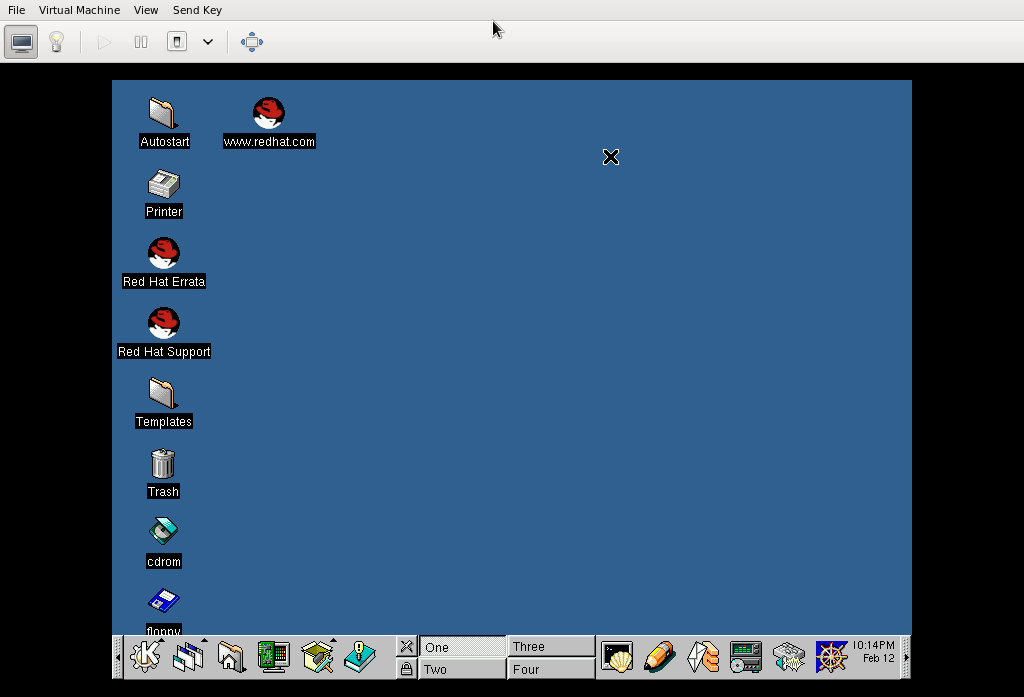
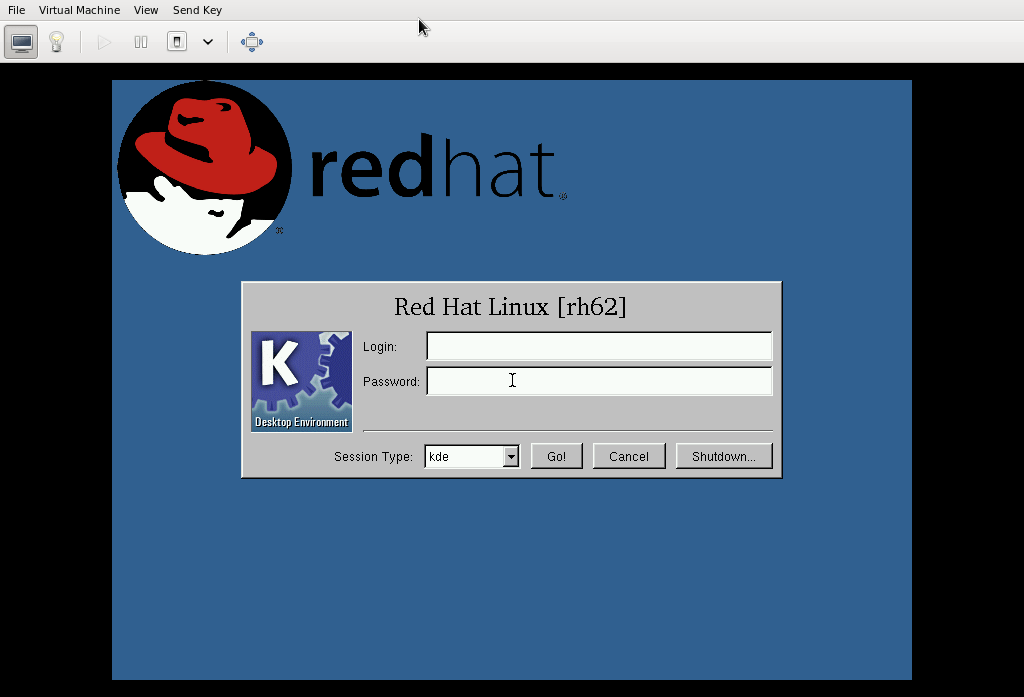
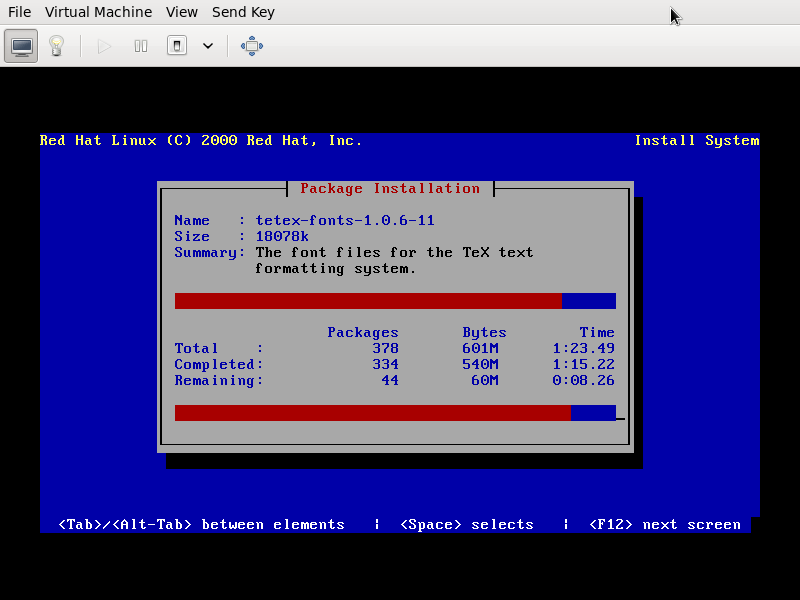
I remember like if it was today the first time I installed Linux in my computer. I was 12 years ago and I bought a magazine, from Spain, that came with the CD of Red Hat 6.1.

I completely destroyed my partition table with Disk Druid, that I don’t know how could recover later. Once the installation was complete,  several days after the issue, I started to fight with my monitor to use 1024 x 768, the only way was using a very low horizontal frequency between 50-60 Hz, but I had to fight with Vertical frequency as well to get it working. Once working as the frequency was low it wasn’t really good for my eyes but it looked nice for screenshots. I used to take lots of screenshots that I have to find some day to post them.

I’m sharing this VM with the world, I’m planning to start uploading VM’s of old Linux distributions, so everyone can see how GNU/Linux was 10 years ago or maybe when it started.

How to install it?

As root:

# wget https://mkreder.com/vms/redhat/6.2/redhat62.xml -O /etc/libvirt/qemu/redhat62.xml
# wget https://mkreder.com/vms/redhat/6.2/redhat62.img.gz -O /var/lib/libvirt/images/redhat62.img.gz
# gzip -d /var/lib/libvirt/images/redhat62.img.gz
# restorecon -R /etc/libvirt/qemu/
# restorecon -R /var/lib/libvirt/images

Español

Me acuerdo como si fuese hoy la primera vez que instale Linux en mi PC. Yo tenia 12 años y había comprado una revista española que venia con el CD de Red Hat Linux 6.1.

Destruí completamente mi tabla de particiones con Disk Druid, todavía no se como hice para recuperarla. Una vez que complete la instalación, después de varios días. Empece a pelearme con mi monitor para que funcione a 1024×768, la único que pude hacer para que funcione fue usar una frecuencia horizontal entre 50-60 Hz, pero aun así tenia que pelearme con la vertical. Una vez que funcionaba, parpadeaba un poco, no era lo mejor para mis ojos, pero podía sacar mejores screenshots, me encantaba coleccionar screenshots. Algún día cuando las encuentre las posteare.


Subí esta VM para que cualquiera pueda bajarla y usarla. Quizás empiece a subir VM’s de distros viejas así todos pueden ver como era GNU/Linux 10 años atrás o quizás cuando empezó.

Como la consigo?

Como root:

# wget https://mkreder.com/vms/redhat/6.2/redhat62.xml -O /etc/libvirt/qemu/redhat62.xml
# wget https://mkreder.com/vms/redhat/6.2/redhat62.img.gz -O /var/lib/libvirt/images/redhat62.img.gz
# gzip -d /var/lib/libvirt/images/redhat62.img.gz
# restorecon -R /etc/libvirt/qemu/
# restorecon -R /var/lib/libvirt/images

A different way to connect to gtalk, Facebook chat, twitter, etc.

Imagine that you are back in the past when the internet was just text and the only way to communicate with other people was IRC.

Well, it’s possible to connect to almost everything with bitlbee. I’m sure most of you already know probably about this, but I didn’t know until yesterday and that’s why I’m blogging about it.

Installation

As simple as:

yum -y install bitlbee

Configuration

Edit the file /etc/xinetd.d/bitlbee and change “disabled = yes” with “disabled = no”

Start xinetd

service xinetd start; chkconfig xinetd on

First steps

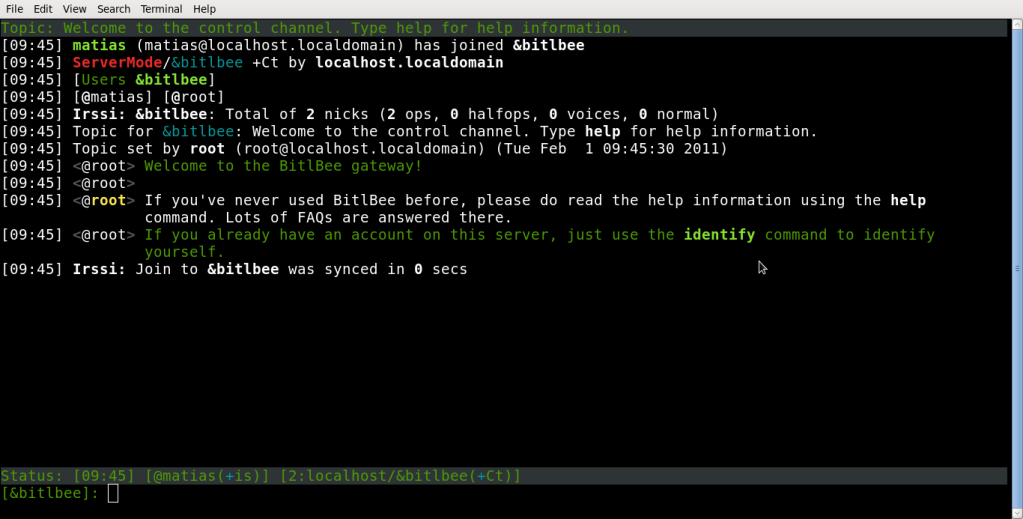
Set up your favorite IRC client to connect to localhost:6667 , as bitlbee works a local IRC server in your computer,  you could easily try to connect to it with /server localhost, the persistent configuration to autoconnect will depend in your IRC client, I use a client-based old client, irssi. Once connected it will join you to a channel called &bitlbee


Once on that channel you will have to start setuping your IM accounts, but first you may need to register to bitlbee as it  will store your credentials (I’m sorry, is the only way it works, but no worries it remains somewhere in your pc).

To register say in the &bitlbee channel:

register PASSWORD

pick a password strong enough.

The next time you join this channel you will have to use:

identify PASSWORD

Now is time to start adding accounts:

Facebook

account add jabber youruser@chat.facebook.com yourpassword

Now you would need to set another thing to help bitlbee to bring the facebook nicknames in a friendly way.

account fb set nick_source full_name (BitlBee 3.0+)
account set facebook/nick_source full_name (Older versions)

Gtalk

This is easy:

account jabber youruser@gmail.com yourpassword

The syntaxis is always the same “account [protocol] [user] [password]”

Twitter

Yes!, twitting from the IRC is really nice, the command would be:

account add twitter user password

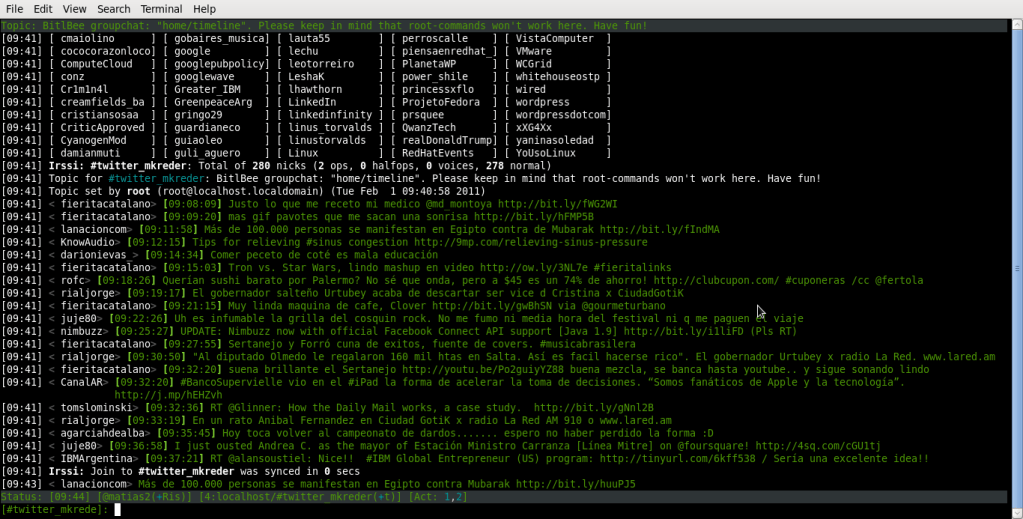
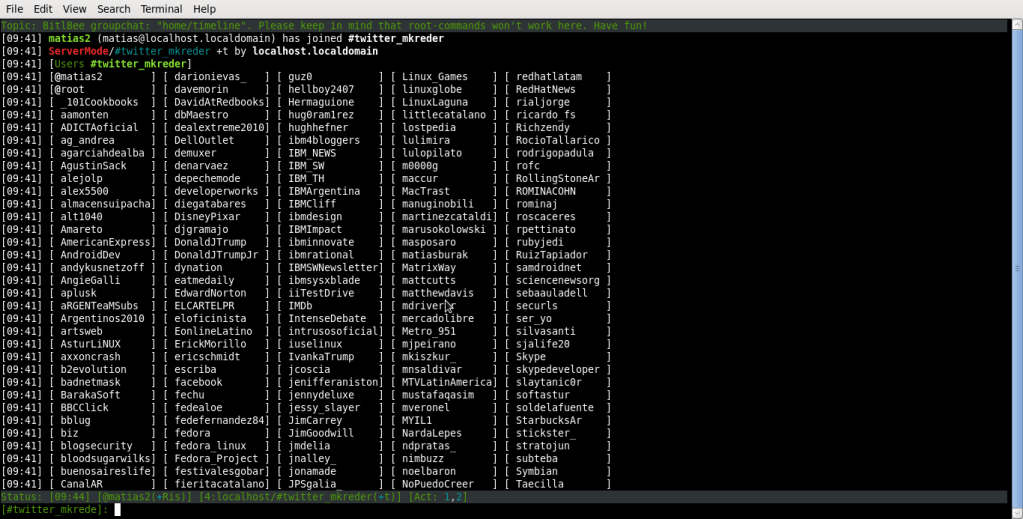
it will first start a new query, giving you an URL, you have to click on that URL and it will give you a passcode, then you can put that passcode on that query and that’s all, it will create a new IRC channel called #twiiter_youraccount and you can see twitter as it was a normal IRC channel:

Almost done

After setting up everything you are ready to start, just run:

account on

Have fun!

Español

Imagínense que estan en el pasado, cuando Internet era solo texto y la unica forma de comunicarse con el mundo era IRC

Bueno, es posible conectarse a casi cualquier cosa con bitlbee. Quizas la mayoria ya lo conosca, pero yo no lo conocía asi que aprovecho para escribir.

Instalación

Tan simple como:

yum -y install bitlbee

Configuración

Hay que editar el archivo  /etc/xinetd.d/bitlbee y cambiar “disabled = yes” por “disabled = no”

Iniciamos xinetd

service xinetd start; chkconfig xinetd on

Primeros pasos

Configura tu cliente de IRC favorito para conectarse a localhost:6667 , como bitlbee funciona como un servidor de IRC local en tu PC, basta con conectarse usando /server localhost. La configuraion para autoconectarse cada vez que abrimos el cliente va a depender del mismo particularmente. Yo uso irssi.

Una vez conectados vamos a entrar a un canal llamado &bitlbee

En este canal, vamos a empezar a configurar nuestras cuentas, pero primero, hay que registrarse con bitlbee, ya que el va a guardar nuestras passwords. (Es la unica forma de usarlo, de todos modos quedaran en nuestra PC)

Para registrarse hay que escribir en el canal $bitlbee

register PASSWORD

Elijan un password complejo.

Cada vez que entremos a este canal, vamos a tener que identificarnos con:

identify PASSWORD

Ahora si podemos empezar a agregar las cuentas

Facebook

account add jabber usuario@chat.facebook.com clave

También hay que configurar otra cosa más ya que sino bitlbee va a traer todos los nicks en un formato ilegible.
account fb set nick_source full_name (BitlBee 3.0+)
account set facebook/nick_source full_name (Older versions)

Gtalk

es facil:

account jabber usuario@gmail.com password

La sintaxis es siempre la misma “account [protocolo] [usuario] [password]”

Twitter

Twittear desde el IRC esta muy bueno, el comando sería:

account add twitter user password

Esto va a abrir un privado con una URL, tenemos que entrar a esa URL y después poner en el privado el passcode que nos devolvió twitter. Esto va a abrir un canal de IRC llamado #twitter_cuenta, y podemos empezar a usar twitter como si fuera un canal de IRC más.

Casi terminamos

Una vez que todas las cuentas están configuradas debemos correr:

account on

Diviértanse!

trying to run old Red Hat version in KVM, failed

Some days ago I felt some nostalgic feelings and I tried to install a red hat 6.2 version into a fedora 14 host.

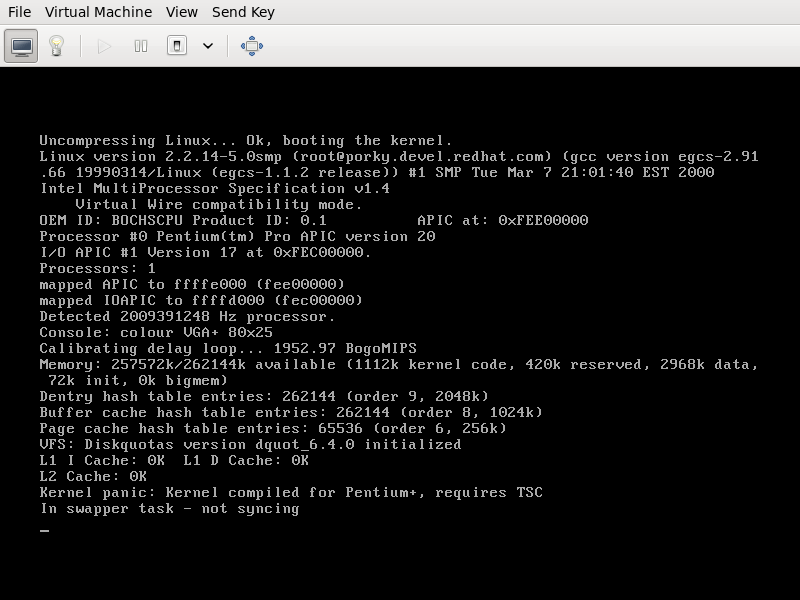
The installation was painfully slow, but it was completed successfully anyway. The problem is that after booting the new (not really) redhat 6..2, I got a kernel panic with the following message:

Kernel panic: Kernel compiled for Pentium+, requires TSC”

after googling that, I found that one of the solutions would be recompile the old linux kernel with the option “Unsynced TSC support”, I’m to lazy to do that just for fun, I would do it if I have no choice, but I have some doubts, why the kernel in the installation cd is not failing? and, is it because my computer has an AMD processor?

Español

Hace algunos días sentí un poco de nostalgia y trate de instalar redhat 6.2 en mi PC con fedora 14

La instalación fue bastante lenta, pero se completo sin mayores problemas. El problema es que después de bootear la nueva (chiste!) instalación, obtuve un kernel panic con el siguiente mensaje:

“Kernel panic: Kernel compiled for Pentium+, requires TSC”

Después de googlear un rato, encontré que una de las soluciones seria recompilar el kernel del viejo linux, con la opción, “Unsynced TSC Support”, lo haría pero soy demasiado perezoso para hacer eso. Pero me quedan algunas dudas, porque el kernel del cd no fallo? este fallo es porque mi PC tiene procesador AMD? hmmm, no lo sé