Mic. input broken on an Acer 1410

Thanks to Mathieu Bouffard, he helped me to to workaround the issue with my mic in Acer Aspire One 1410.

Issue:

Somehow the ALSA driver is trying to pass to PulseAudio an stereo output that PulseAudio doesn’t understand.

Solution:

Use jackd as a “proxy” between ALSA and PulseAudio, jackd will capture the input in mono from the ALSA driver, and pass it to PulseAudio.

Download his module for PulseAudio:

# yum install pulseaudio-module-jack

Configure PulseAudio to no auto respawn when killed.

echo "autospawn = no" > ~/.pulse/client.conf

Create a file in our home directory ~/jackd.pa

#!/usr/bin/pulseaudio -nF

###
# these modules will connect to JACK
load-module module-jack-sink
load-module module-jack-source

###
#add-autoload-sink output module-jack-sink channels=2
#add-autoload-source input module-jack-source channels=2
#load-module module-esound-protocol-unix
load-module module-native-protocol-unix
load-module module-volume-restore
#load-module module-stream-restore
load-module module-rescue-streams
.nofail


###
load-module module-x11-publish
load-module module-gconf

###
# Load LIRC for Pulse
# load-module module-lirc sink=jack_out config=/home/mbouffard/.lircrc

Create the config file for ALSA: ~/.asoundrc

# .asoundrc

pcm.!default {
type pulse
hint.description "Default Audio Device"
}
ctl.!default {
type pulse
}

and last but not least, create a mini-script to launch PulseAudio using this configuration. I called it ~/pulsejack:

killall jackd ; pulseaudio --kill
/usr/bin/jackd -S -v -r -dalsa -dhw:0 -r48000 -p1024 -n2 &
pulseaudio -n -F jackd.pa
while [ $? -eq 137 ]; do
sleep 5; #sometimes after get started pulseaudio got killed somehow
pulseaudio -n -F jackd.pa
done

We run our script:

chmod +x ~/pulsejack
~/pulsejack

A patch was submitted to the alsa devel team to fix this problem at ALSA level.

Español

Gracias a Mathieu Bouffard, él me ayudo a a configurar mi micrófono en mi Acer Aspire One 1410.

Problema:

De algún modo el driver de ALSA esta tratando de pasarle a PulseAudio una salida stereo que PulseAudio no entiende.

Solución:

Usando jackd como un “proxy” entre ALSA y PulseAudio. Jackd va a capturar la entrada mono desde el driver de ALSA y se lo va a pasar a PulseAudio

Descargamos el siguiente modulo de PulseAudio:

# yum install pulseaudio-module-jack

Configuramos PulseAUdio para no auto-reiniciarse cuando lo matamos.

echo "autospawn = no" > ~/.pulse/client.conf

Creamos el siguiente archivo en nuestro home: ~/jackd.pa

#!/usr/bin/pulseaudio -nF

###
# these modules will connect to JACK
load-module module-jack-sink
load-module module-jack-source

###
#add-autoload-sink output module-jack-sink channels=2
#add-autoload-source input module-jack-source channels=2
#load-module module-esound-protocol-unix
load-module module-native-protocol-unix
load-module module-volume-restore
#load-module module-stream-restore
load-module module-rescue-streams
.nofail


###
load-module module-x11-publish
load-module module-gconf

###
# Load LIRC for Pulse
# load-module module-lirc sink=jack_out config=/home/mbouffard/.lircrc

Creamos el archivo de configuración para ALSA: ~/.asoundrc

# .asoundrc

pcm.!default {
type pulse
hint.description "Default Audio Device"
}
ctl.!default {
type pulse
}

Y por ultimo, creamos un mini-script para lanzar PulseAudio usando esta configuración. Yo lo llame ~/pulsejack:

killall jackd ; pulseaudio --kill
/usr/bin/jackd -S -v -r -dalsa -dhw:0 -r48000 -p1024 -n2 &
pulseaudio -n -F jackd.pa
while [ $? -eq 137 ]; do
sleep 5; # a veces despues de iniciar alguien o algo mata a pulseaudio
pulseaudio -n -F jackd.pa
done

Ejecutamos nuestro script:

chmod +x ~/pulsejack
~/pulsejack

Un patch fue enviado al team de ALSA para solucionar este problema desde el driver.
4 reasons why I’m moving back to Fedora from Freebsd

I had FreeBSD as a home server working well. One day I decided to merge my 2 computers, as I’m concerned about global warming and climate change. I had a workstation with Fedora and my home server with FreeBSD. I decided to leave FreeBSD as single OS (big mistake!).

After 1 month of being used FreeBSD as a desktop, today I decided to move all my data back from ZFS/UFS to ext4, and install Fedora on it.

These are the problems that I had:

  • Kozumi ktv-01c TV synthesizer not working. These was obvious I didn’t expect it to work, I tried the driver that freebsd has called bktr, tried all possible configurations without success.
  • Sound card working partially!!. My sound card HDA Analog Devices AD1986A is working partially. The spearkers works ok. The front input and output for headsets are not. The mic in just have white noise. The line in was not working also. After posting in the FreeBSD forum and sending emails to the mailing list, they help me to change some kernel parameters to be able to record from line. But anyway, sound was not being routed to speakers, so I could not use my mixer and listen what I was mixing.
  • Sometimes I got a kernel panic or something like that. I had to hard reboot my PC. After the reboot I could have 2 ugly behaviors. 1. I have a RAID1 mirror with all my data, after the crash a resynchronization started. While it was resynchronizing I could not use my keyboard. Furthermore, I could not use my computer. 2. UFS is a girl, it remembered as ext2, for anything it’s requires an fsck, and I didn’t enjoy to fsck a filesystem will all my data on it.
  • A ugly bug with my network nvidia card. Sometimes when I rebooted my PC I got a message and my network card was useless. I had to turn off my PC, unplug the power core so all the buffers were clean and boot it again.

Conclusion:

I wouldn’t use FreeBSD as a desktop any more. I will miss features like jails that make me feel secure, it was great to run applications that I don’t trust like tranmission or aMule inside a jail, but it’s no big deal comparing that with all the cons I found.

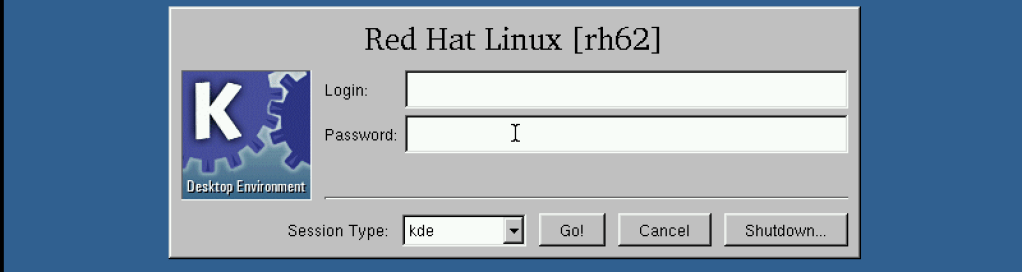
Red Hat Linux 6.2

I remember like if it was today the first time I installed Linux in my computer. I was 12 years ago and I bought a magazine, from Spain, that came with the CD of Red Hat 6.1.

I completely destroyed my partition table with Disk Druid, that I don’t know how could recover later. Once the installation was complete,  several days after the issue, I started to fight with my monitor to use 1024 x 768, the only way was using a very low horizontal frequency between 50-60 Hz, but I had to fight with Vertical frequency as well to get it working. Once working as the frequency was low it wasn’t really good for my eyes but it looked nice for screenshots. I used to take lots of screenshots that I have to find some day to post them.

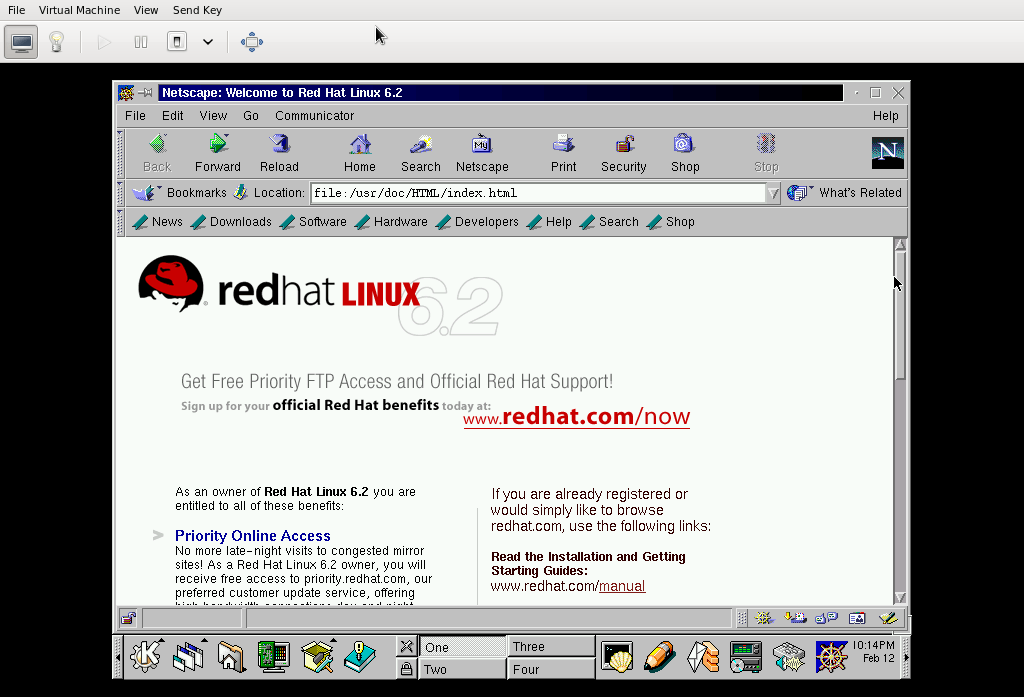
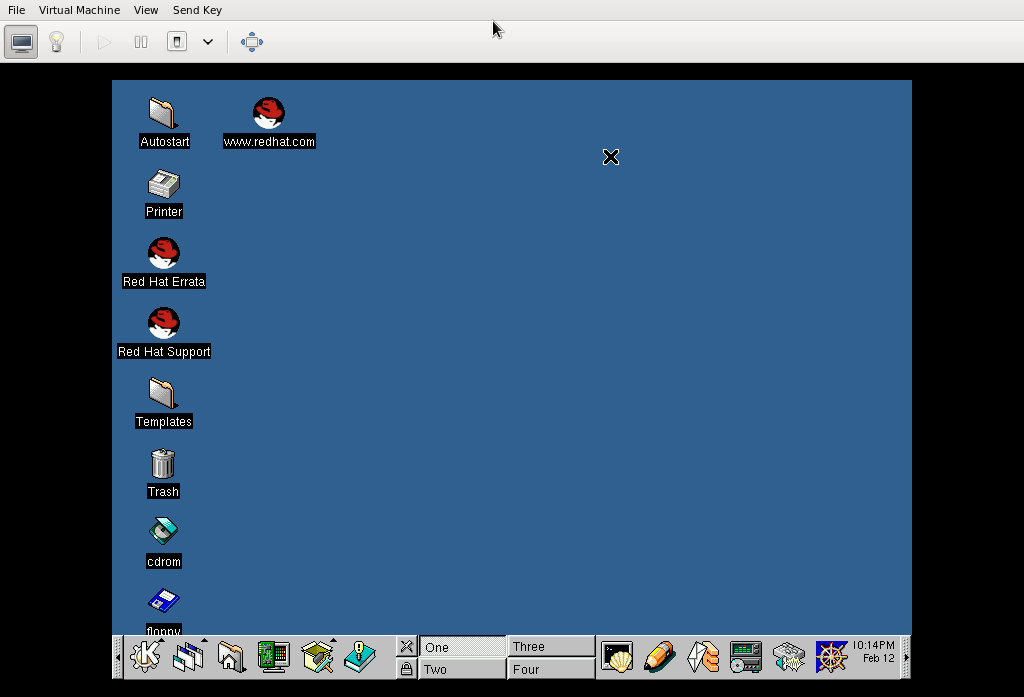
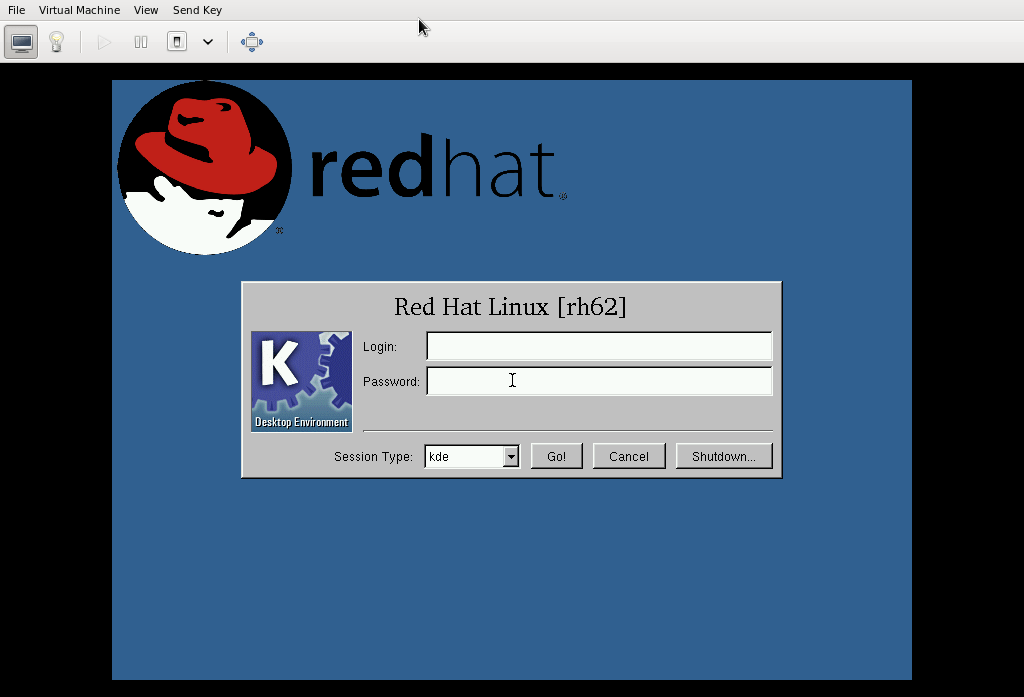
I’m sharing this VM with the world, I’m planning to start uploading VM’s of old Linux distributions, so everyone can see how GNU/Linux was 10 years ago or maybe when it started.

How to install it?

As root:

# wget https://mkreder.com/vms/redhat/6.2/redhat62.xml -O /etc/libvirt/qemu/redhat62.xml
# wget https://mkreder.com/vms/redhat/6.2/redhat62.img.gz -O /var/lib/libvirt/images/redhat62.img.gz
# gzip -d /var/lib/libvirt/images/redhat62.img.gz
# restorecon -R /etc/libvirt/qemu/
# restorecon -R /var/lib/libvirt/images

Español

Me acuerdo como si fuese hoy la primera vez que instale Linux en mi PC. Yo tenia 12 años y había comprado una revista española que venia con el CD de Red Hat Linux 6.1.

Destruí completamente mi tabla de particiones con Disk Druid, todavía no se como hice para recuperarla. Una vez que complete la instalación, después de varios días. Empece a pelearme con mi monitor para que funcione a 1024×768, la único que pude hacer para que funcione fue usar una frecuencia horizontal entre 50-60 Hz, pero aun así tenia que pelearme con la vertical. Una vez que funcionaba, parpadeaba un poco, no era lo mejor para mis ojos, pero podía sacar mejores screenshots, me encantaba coleccionar screenshots. Algún día cuando las encuentre las posteare.


Subí esta VM para que cualquiera pueda bajarla y usarla. Quizás empiece a subir VM’s de distros viejas así todos pueden ver como era GNU/Linux 10 años atrás o quizás cuando empezó.

Como la consigo?

Como root:

# wget https://mkreder.com/vms/redhat/6.2/redhat62.xml -O /etc/libvirt/qemu/redhat62.xml
# wget https://mkreder.com/vms/redhat/6.2/redhat62.img.gz -O /var/lib/libvirt/images/redhat62.img.gz
# gzip -d /var/lib/libvirt/images/redhat62.img.gz
# restorecon -R /etc/libvirt/qemu/
# restorecon -R /var/lib/libvirt/images

A different way to connect to gtalk, Facebook chat, twitter, etc.

Imagine that you are back in the past when the internet was just text and the only way to communicate with other people was IRC.

Well, it’s possible to connect to almost everything with bitlbee. I’m sure most of you already know probably about this, but I didn’t know until yesterday and that’s why I’m blogging about it.

Installation

As simple as:

yum -y install bitlbee

Configuration

Edit the file /etc/xinetd.d/bitlbee and change “disabled = yes” with “disabled = no”

Start xinetd

service xinetd start; chkconfig xinetd on

First steps

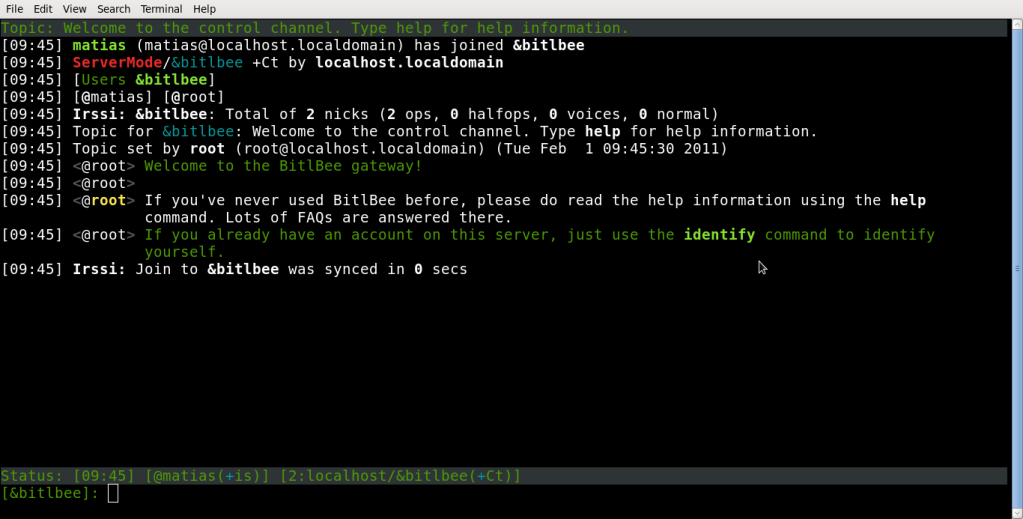
Set up your favorite IRC client to connect to localhost:6667 , as bitlbee works a local IRC server in your computer,  you could easily try to connect to it with /server localhost, the persistent configuration to autoconnect will depend in your IRC client, I use a client-based old client, irssi. Once connected it will join you to a channel called &bitlbee


Once on that channel you will have to start setuping your IM accounts, but first you may need to register to bitlbee as it  will store your credentials (I’m sorry, is the only way it works, but no worries it remains somewhere in your pc).

To register say in the &bitlbee channel:

register PASSWORD

pick a password strong enough.

The next time you join this channel you will have to use:

identify PASSWORD

Now is time to start adding accounts:

Facebook

account add jabber youruser@chat.facebook.com yourpassword

Now you would need to set another thing to help bitlbee to bring the facebook nicknames in a friendly way.

account fb set nick_source full_name (BitlBee 3.0+)
account set facebook/nick_source full_name (Older versions)

Gtalk

This is easy:

account jabber youruser@gmail.com yourpassword

The syntaxis is always the same “account [protocol] [user] [password]”

Twitter

Yes!, twitting from the IRC is really nice, the command would be:

account add twitter user password

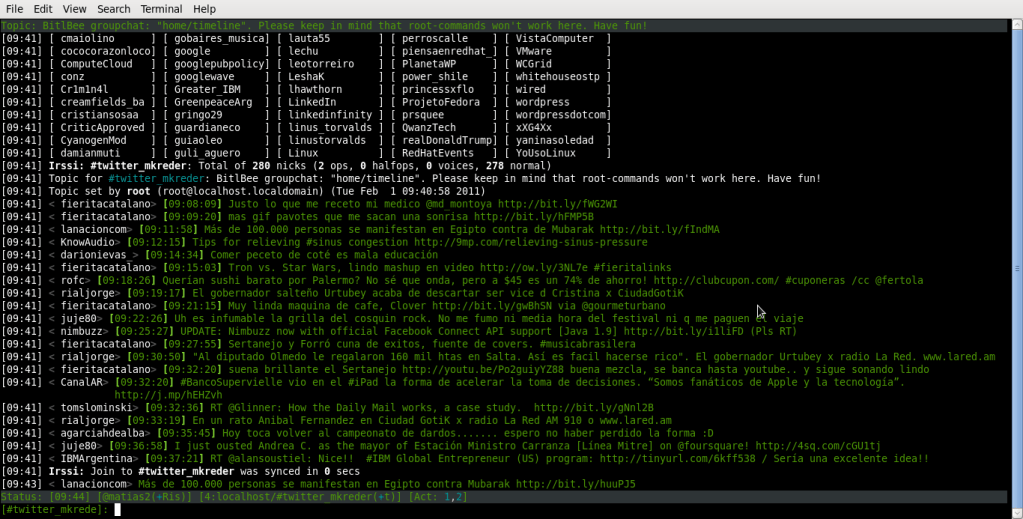
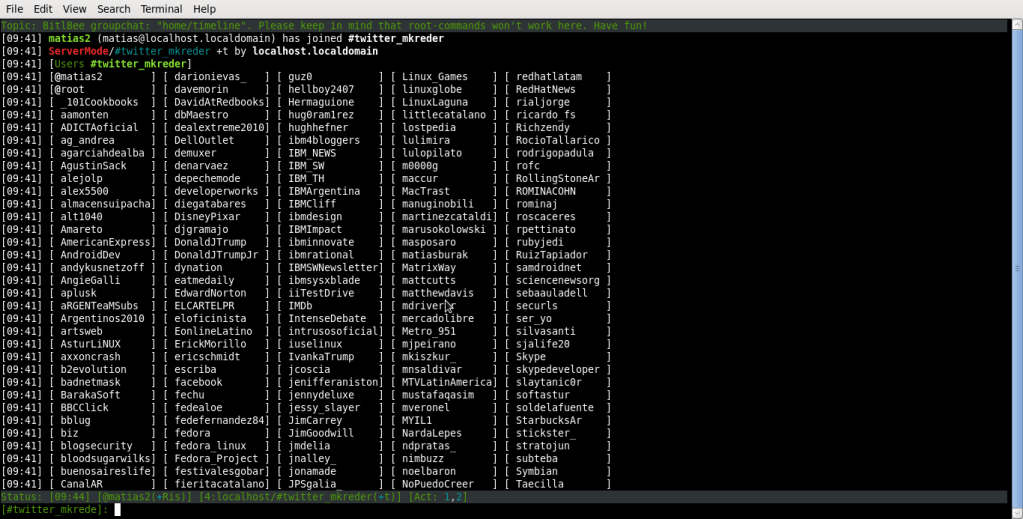
it will first start a new query, giving you an URL, you have to click on that URL and it will give you a passcode, then you can put that passcode on that query and that’s all, it will create a new IRC channel called #twiiter_youraccount and you can see twitter as it was a normal IRC channel:

Almost done

After setting up everything you are ready to start, just run:

account on

Have fun!

Español

Imagínense que estan en el pasado, cuando Internet era solo texto y la unica forma de comunicarse con el mundo era IRC

Bueno, es posible conectarse a casi cualquier cosa con bitlbee. Quizas la mayoria ya lo conosca, pero yo no lo conocía asi que aprovecho para escribir.

Instalación

Tan simple como:

yum -y install bitlbee

Configuración

Hay que editar el archivo  /etc/xinetd.d/bitlbee y cambiar “disabled = yes” por “disabled = no”

Iniciamos xinetd

service xinetd start; chkconfig xinetd on

Primeros pasos

Configura tu cliente de IRC favorito para conectarse a localhost:6667 , como bitlbee funciona como un servidor de IRC local en tu PC, basta con conectarse usando /server localhost. La configuraion para autoconectarse cada vez que abrimos el cliente va a depender del mismo particularmente. Yo uso irssi.

Una vez conectados vamos a entrar a un canal llamado &bitlbee

En este canal, vamos a empezar a configurar nuestras cuentas, pero primero, hay que registrarse con bitlbee, ya que el va a guardar nuestras passwords. (Es la unica forma de usarlo, de todos modos quedaran en nuestra PC)

Para registrarse hay que escribir en el canal $bitlbee

register PASSWORD

Elijan un password complejo.

Cada vez que entremos a este canal, vamos a tener que identificarnos con:

identify PASSWORD

Ahora si podemos empezar a agregar las cuentas

Facebook

account add jabber usuario@chat.facebook.com clave

También hay que configurar otra cosa más ya que sino bitlbee va a traer todos los nicks en un formato ilegible.
account fb set nick_source full_name (BitlBee 3.0+)
account set facebook/nick_source full_name (Older versions)

Gtalk

es facil:

account jabber usuario@gmail.com password

La sintaxis es siempre la misma “account [protocolo] [usuario] [password]”

Twitter

Twittear desde el IRC esta muy bueno, el comando sería:

account add twitter user password

Esto va a abrir un privado con una URL, tenemos que entrar a esa URL y después poner en el privado el passcode que nos devolvió twitter. Esto va a abrir un canal de IRC llamado #twitter_cuenta, y podemos empezar a usar twitter como si fuera un canal de IRC más.

Casi terminamos

Una vez que todas las cuentas están configuradas debemos correr:

account on

Diviértanse!

trying to run old Red Hat version in KVM, failed

Some days ago I felt some nostalgic feelings and I tried to install a red hat 6.2 version into a fedora 14 host.

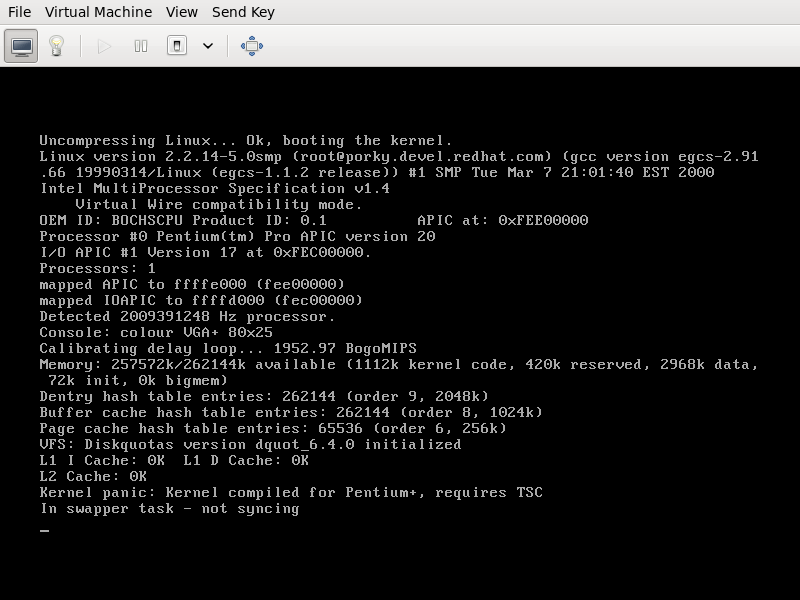
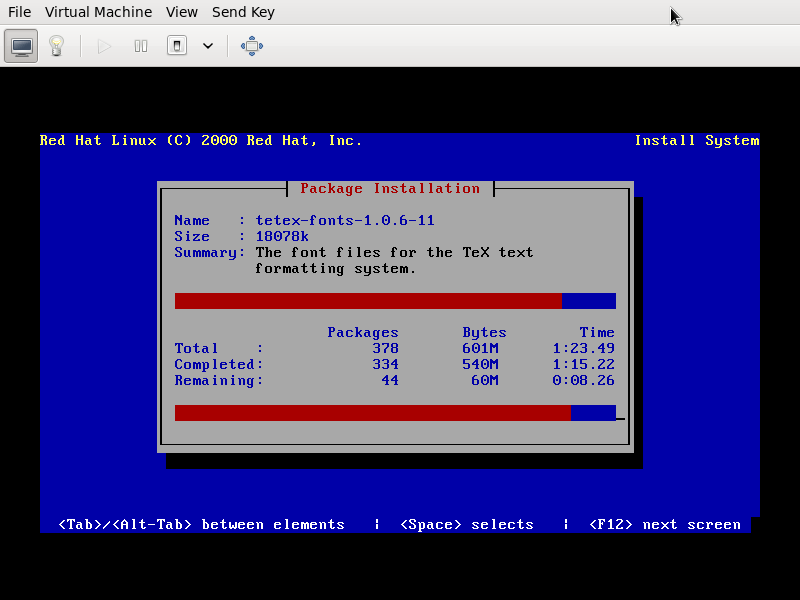
The installation was painfully slow, but it was completed successfully anyway. The problem is that after booting the new (not really) redhat 6..2, I got a kernel panic with the following message:

Kernel panic: Kernel compiled for Pentium+, requires TSC”

after googling that, I found that one of the solutions would be recompile the old linux kernel with the option “Unsynced TSC support”, I’m to lazy to do that just for fun, I would do it if I have no choice, but I have some doubts, why the kernel in the installation cd is not failing? and, is it because my computer has an AMD processor?

Español

Hace algunos días sentí un poco de nostalgia y trate de instalar redhat 6.2 en mi PC con fedora 14

La instalación fue bastante lenta, pero se completo sin mayores problemas. El problema es que después de bootear la nueva (chiste!) instalación, obtuve un kernel panic con el siguiente mensaje:

“Kernel panic: Kernel compiled for Pentium+, requires TSC”

Después de googlear un rato, encontré que una de las soluciones seria recompilar el kernel del viejo linux, con la opción, “Unsynced TSC Support”, lo haría pero soy demasiado perezoso para hacer eso. Pero me quedan algunas dudas, porque el kernel del cd no fallo? este fallo es porque mi PC tiene procesador AMD? hmmm, no lo sé

How to build Microsoft fonts for OpenOffice

These are the required step to install Microsoft fonts in Fedora 13 for OpenOffice:

We would need to install all the required dependencies, as root:

# yum -y install rpm-build cabextract ttmkfdir xorg-x11-xfs
# yum install http://dl.atrpms.net/f13-x86_64/atrpms/stable/chkfontpath-1.10.1-2.fc13.x86_64.rpm –nogpgcheck

We make the rpm package (as a normal user):

mkdir -p $HOME/rpmbuild/SPECS
cd $HOME/rpmbuild/SPECS
wget http://pfrields.fedorapeople.org/packages/SPECS/msttcorefonts-2.0-1.1.spec
rpmbuild -bb msttcorefonts-2.0-1.1.spec

Then, as root again, we should install the rpm:

rpm -ivh $HOME/rpmbuild/RPMS/noarch/msttcorefonts-2.0-1.1.noarch.rpm

Then we launch OpenOffice and we would be able to use Arial, Times New Roman, etc.

Instalando fuentes de Microsoft en Fedora 13

Estos son los pasos que hay que seguir para instalar las fuentes de Microsoft en Fedora 13 para usar con OpenOffice:

Como root instalamos las dependencias:

# yum -y install rpm-build cabextract ttmkfdir xorg-x11-xfs
# yum install http://dl.atrpms.net/f13-x86_64/atrpms/stable/chkfontpath-1.10.1-2.fc13.x86_64.rpm --nogpgcheck

Como usuario normal armamos el rpm con las fuentes:

mkdir -p $HOME/rpmbuild/SPECS
cd $HOME/rpmbuild/SPECS
wget http://pfrields.fedorapeople.org/packages/SPECS/msttcorefonts-2.0-1.1.spec
rpmbuild -bb msttcorefonts-2.0-1.1.spec

Como root instalamos el rpm:

rpm -ivh $HOME/rpmbuild/RPMS/noarch/msttcorefonts-2.0-1.1.noarch.rpm

Luego iniciar OpenOffice y ya deberíamos ser capaces de utilizar Arial, Times New Roman, etc.

English

These are the required step to install Microsoft fonts in Fedora 13 for OpenOffice:

We would need to install all the required dependencies, as root:

# yum -y install rpm-build cabextract ttmkfdir xorg-x11-xfs
# yum install http://dl.atrpms.net/f13-x86_64/atrpms/stable/chkfontpath-1.10.1-2.fc13.x86_64.rpm --nogpgcheck

We make the rpm package (as a normal user):

mkdir -p $HOME/rpmbuild/SPECS
cd $HOME/rpmbuild/SPECS
wget http://pfrields.fedorapeople.org/packages/SPECS/msttcorefonts-2.0-1.1.spec
rpmbuild -bb msttcorefonts-2.0-1.1.spec

Then, as root again, we should install the rpm:

rpm -ivh $HOME/rpmbuild/RPMS/noarch/msttcorefonts-2.0-1.1.noarch.rpm

Then we launch OpenOffice and we would be able to use Arial, Times New Roman, etc.

“checksum failure downloading vmlinuz” actualizando con preupgragre/while updating with preupgrade

Español

Actualizando a Fedora 13 con preupgrade me encontré con varios issues. El primero, que no parece estar muy documentado, es que mientras descagarba la información de la release, obtenía un error que me decía que había un problema en el mirror.

Iniciando preupgrade en una terminal, pude ver que este era el error:

checksum failure downloading vmlinuz

Así que definitivamente si había un problema en el mirror, intente varias veces obteniendo el mismo error. Decidí consultar en #fedora-qa acerca de como resolver este problema.

Y la solución es esta:

wget http://mirrors.fedoraproject.org/releases.txt

editar el archivo releases.txt comentado mirrorlist y descomentado baseurl, configurando nosotros la URL del mirror que elegimos o la URL por defecto de download.fedora.redhat.com.

Luego ejecutar preupgrade en el mismo $PWD en el que se encuentra el archivo releases.txt modificado

Otro problema que tuve fue el reportado en BZ 573451

Todavía estoy actualizando y espero que termine exitosamente.

“delete: it’ll only work if you blog about it and tell others how to do it! :)”

English

Updating to Fedora 13 with preupgrade I faced some issues. The first one, which apparently is not documented, is that while downloading release info, I got an error message telling me that there was a problem with the mirror.

running preupgrade in a terminal, I saw the following error:

checksum failure downloading vmlinuz

There was definitely a problem with the mirror. I tried several times getting the same error, so I decided to ask in #fedora-qa about it.

And this is the fix:

wget http://mirrors.fedoraproject.org/releases.txt

edit releases.txt, comment mirrorlist and uncomment baseurl, setting the URL of the mirror that we choose, or leaving the default URL download.fedora.redhat.com.

Then run preupgrade with releases.txt in our $PWD

Another issue that I had was reported in BZ 573451

I’m stilling updating and I hope it ends successfully.

“delete: it’ll only work if you blog about it and tell others how to do it! :)”

Huawei E1692/E1756 para Personal en Fedora 12

Esta pequeña guiá muestra como utilizar el Modem Huawei E1692/E1756 para Personal, en Fedora 12.

Como este modem también es un pendrive tenemos que hacer que el dispositivo sea detectado como un modem, para eso instalamos usb_modeswitch.

yum install usb_modeswitch

luego debemos agregar al final del archivo /etc/usb_modeswitch.conf, las siguientes lineas:

gedit /etc/usb_modeswitch.conf

###############################
# Huawei E1692/E1756
DefaultVendor= 0x12d1
DefaultProduct= 0x1446

TargetVendor= 0x12d1
TargetProduct= 0x140c

MessageContent="55534243000000000000000000000011060000000000000000000000000000"

CheckSuccess=5
###########################

Debemos agregar a udev la regla para ejecutar usb_modeswitch cuando el modem es detectado

gedit /etc/udev/rules.d/15-hauwei.rules

##
SUBSYSTEM=="block",
ACTION=="add",
SYSFS{idVendor}=="12d1",
SYSFS{idProduct}=="1446",
OPTIONS="ignore_device"

SUBSYSTEM=="usb", SYSFS{idProduct}=="1446", SYSFS{idVendor}=="12d1", RUN+="/usr/bin/usb_modeswitch"
##

Una vez terminado este paso podemos conectar nuestro modem y empezar a configurarlo en NetworkManager.

Fedora 13 alpha release disponible

La nueva versión Alpha de Fedora 13 ya esta disponible para dercargar!

Algunos de sus nuevos Features son:

  • Instalación automática del driver de cualquier impresora
  • Instalación automática de paquetes de idioma
  • Herramientas para el manejo de usuarios rediseñadas
  • Manejo de Color en GNOME
  • Mejoras en NetworkManager, entre ellas un CLI
  • 3D experimental extendido en el driver Nouveau para placas Nvidia

Para desarroladores:

  • Pruebas estáticas para SystemTap
  • Debugging de Python fácil
  • Instalación paralela de Python 3
  • NetBean 6.8 el primer IDE que soporta Java EE 6.0

Para administradores:

  • boot.fedoraproject.org
  • System Secury Srevices Daemon
  • Más features para NFS v4
  • Zarafa Groupware
  • Integración de snpashots en Btrfs

Pueden leer mas acerca de este anuncio y cada feature aquí.